Showing posts with label System HowTo. Show all posts

*HOW TO TRACE A MISSING OR STOLEN PHONE.*


If you lose your mobile phone, you can trace it without going to the police.

Most of us always fear that our phones may be stolen at any time.

Each phone carries a unique 
IMEI no. i.e. International Mobile Equipment Identity No which can be used to track it anywhere in the world.


This is how it works:

1. Dial *#06# from your mobile.

2. Your mobile phone shows a unique 15 digit.

3. Note down this number at a secure place except in your mobile phone itself as this is the number which will help trace your phone in case of theft.

4. Once stolen, just E-mail this 15 digit IMEI No. to cop@vsnl.net with details as stated below:

Your name:____________________
Address:______________________
Phone model:_________________
Make:_________________________
Last used No.:_________________
E-mail for communication:_____
Missed date:___________________
IMEI No :_______________________

5.Your Mobile will be traced within next 24 hours via a complex system of GPRS and internet, You will find where your hand set is being operated and the new user's No. will be sent to your email.
6. After this, you can inform the Police with the details you now have.

PLEASE SHARE THIS VERY IMPORTANT MESSAGE.
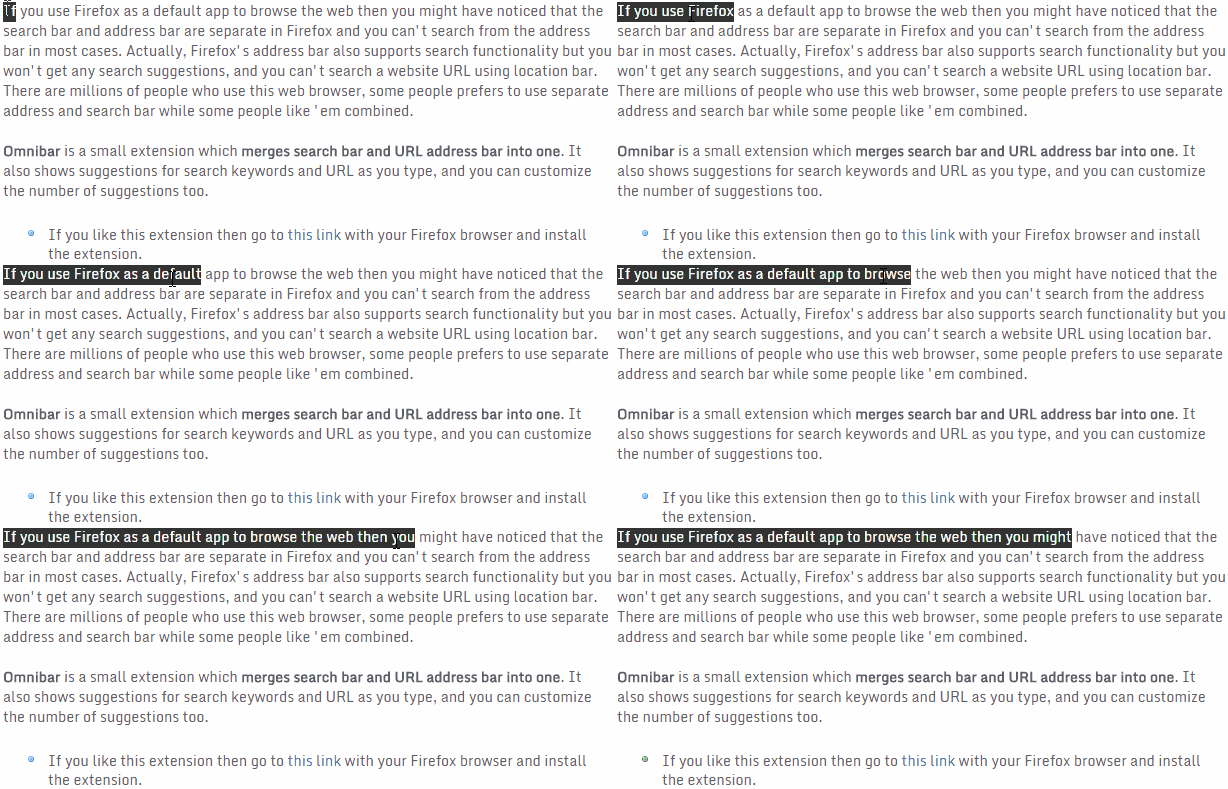
Selecting or highlighting text is one of the easiest task in Windows. It's a thing which even novice computer users are familiar with. If you're a blogger then you've to copy and paste text hundreds of times in a week! But do you know there are multiple ways for text selection? Yes! All of you might not be familiar with this feature Windows operating system.

Today, in this tutorial I will show you various tips and tricks for selecting texts in a much easier way. Excited? Then read below.

Select one character at a time
It's easy and you already know this. Click ONCE right before the character you want to copy and pull the mouse cursor over the text you want to select/highlight, the text selection will advance by one character as you pull your cursor over it.


How to Select Text by Character, Word, and Paragraph

Select one word at a time
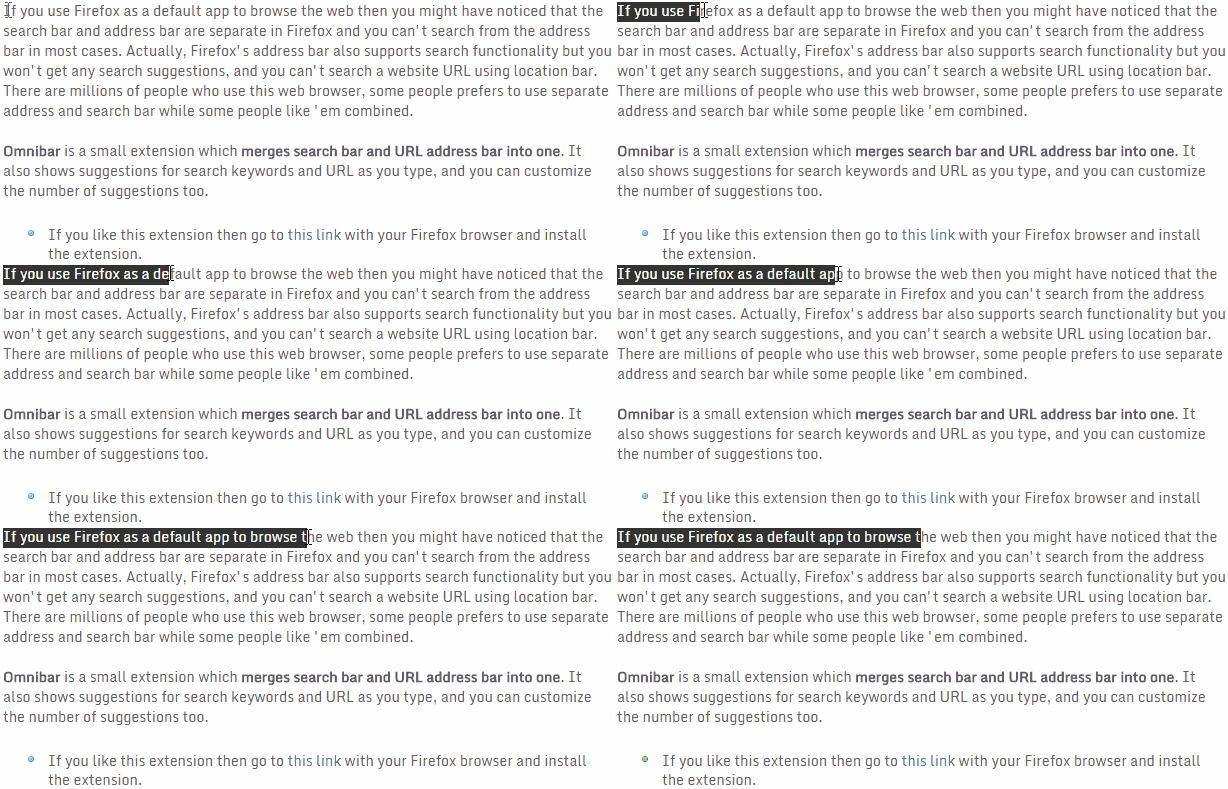
You might not be familiar with this. If you'll double click your mouse before you begin selecting the text then text selection will advance by highlighting one word at a time.

How to Select Text by Character, Word, and Paragraph

Click TWICE right before the word you want to select and pull your mouse cursor over the text, interestingly text selection will advance by highlighting one word at a time. Similarly, you can double click on a word to highlight it.

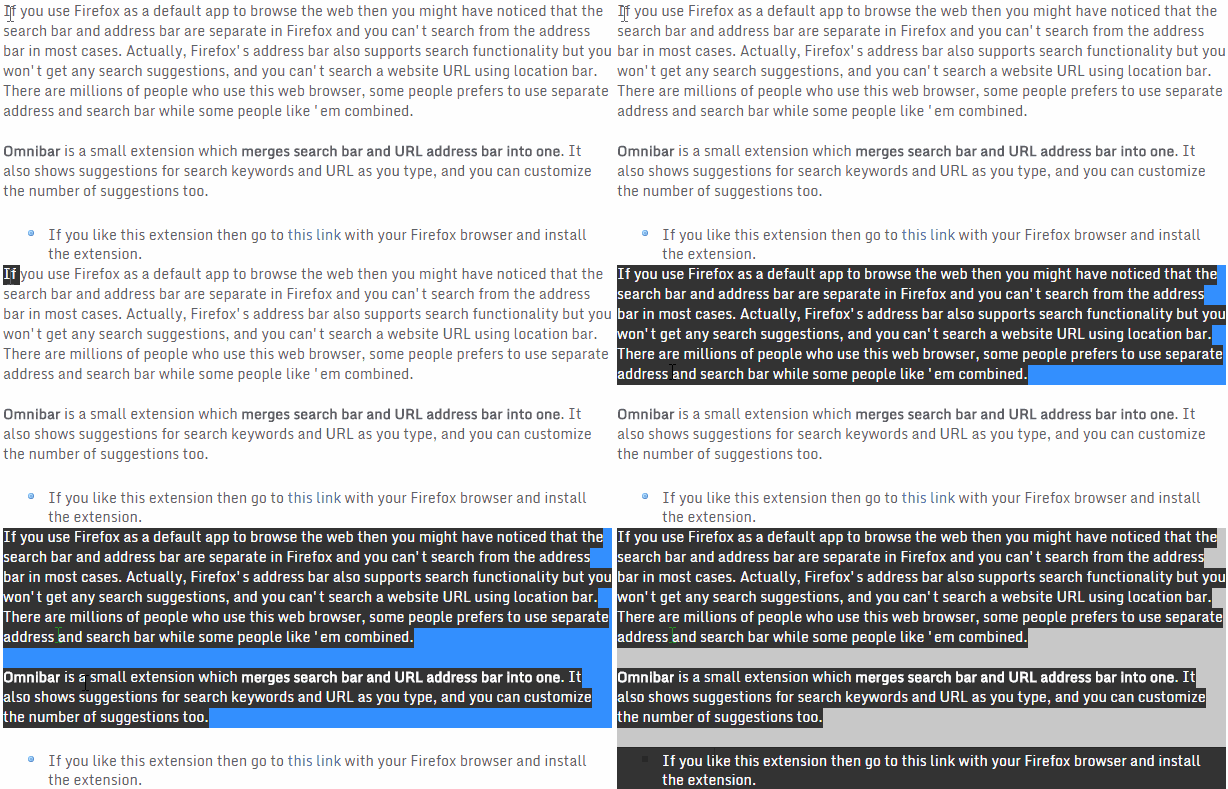
Select one paragraph at at time
Triple click on any of the paragraph on this post to highlight the whole paragraph. If you want the text selection to advance by one paragraph as you move your mouse then click THRICE on the first paragraph and pull your cursor downward (or upward).

How to Select Text by Character, Word, and Paragraph

This trick will completely work on all the versions of Windows but I am not familiar with other operating systems like Mac OS or Chrome OS.

We all know Microsoft includes a whole new default web browser called Microsoft Edge in Windows 10. It's a modern light weight app designed for better performance and compatibility. Currently, it doesn't supports any extension, and many more features are missing.


Microsoft Edge's design looks quite cool and many users like it. It also includes a "Dark Theme" which can be enabled using the settings. I have already discussed about Edge in one of my previous post. Take a look at it to know all it's features and settings.
Have you ever imagined if you can get the same dark theme used in the Edge browser for your Firefox? If yes then you'll surely like this post. A developer have designed a similar looking dark theme for Firefox, and he also promised to design a light version of this theme.

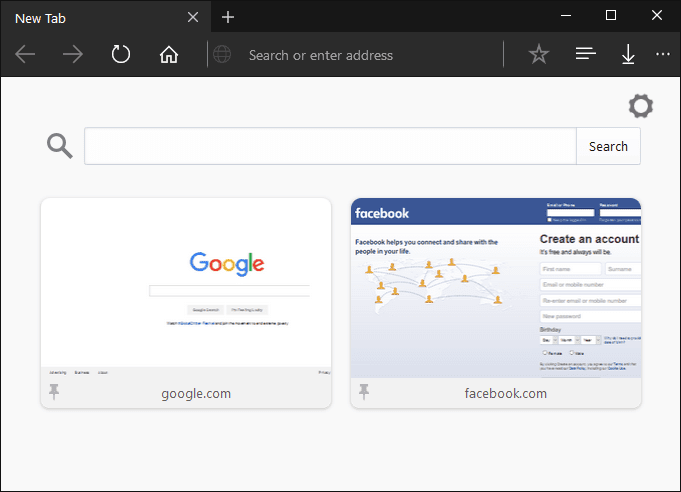
Note: This theme is currently in developmental stage and it may have some bugs. I have tested this theme and it works quite well. Take a look at the screenshot given below.


Make Firefox Look Like Microsoft Edge Browser

Liked the above screenshot? You can get that look with a simple CSS trick. Follow the following steps to apply this theme to your Mozilla Firefox.
  • Open Firefox and type "about:support" without quotes in the URL Bar. It'll open Troubleshooting Information page.
  • Click on "Show Folder" button given next to the "Profile Folder" label. It'll open Profile folder in Windows Explorer.
  • Now create a new folder there and name it Chrome.
  • Then download the CSS file from here and save it inside Chrome folder.
Note: I am providing the CSS file here to make your task easier. Thanks to Wellkins at Deviantart for designing this theme. Also, it is in developmental stage, therefore if you know how to create a CSS file then go to this link (Deviantart) and download the required files.
  • Relaunch the web browser after saving the CSS files in the specified folder. It'll now partially look like Microsoft Edge.
Following the above steps will turn your Firefox browser partially into Edge. Now we will combine the address bar and search bar.
  • Go to this link and download the Omnibar extension for Firefox.

Also Read:

Now you may want to bring the Home, Reload/stop button in the left hand side, just like Microsoft Edge. If yes, download and install the following extension.
  • Get the Buttons Back extension from here (Firefox Add-ons page).
That's all. Enjoy the new Microsoft Edge looks in your Mozilla Firefox web browser. Comment below if you like this theme.

@boscy1

 boscy1
To get the full size profile photo of a Instagram profile,
  • Get your laptop out and navigate to Instagram.com.
  • Login to your Instagram account.
  • Go to the profile of your friend or follower.
  • Right click on the profile photo and copy link.
  • Paste the link in a new tab.
  • Remove this part from the URL: s150x150
  • Hit Enter to see the full size Instagram profile photo.
Hope you find this article easier.
Why is it possible to view full size Instagram photo just by modifying the URL?
Instagram uses a third-party CDN (Content Delivery Network) to host images. The CDN resizes the image you upload and stores it in different size. The URL contains the parameter for selecting the size that user requires.
This can be a biggest privacy issue as some people might upload sensitive photos as their profile photo. There will not be any issue when the image is resized to small but there comes a big privacy issue when the image is in full resolution.

Notice

Be careful on how you upload Instagram profile photo if you are going to upload a sensitive photo as your profile photo. Because u never may know who is going to enlarged your photos.

Playing games on the social networking giant Facebook is pretty common these days. There are Thousands of popular & Addictive games on Facebook and among those infinite games available on this site, Candy Crush Saga have gained so much hype & exploded in fame and huge popularity on Facebook over these years. Its obvious that you might have played lots of games on Facebook but, many of the users probably aren’t aware of the hidden secret games inside the company’s very own Messenger app. I have shared new features on facebook messenger but did you know that the Facebook has been hiding a CHESS game inside the Facebook’s Messenger App that lets you do more than just sending private messages & video calls? if you think so, then you are wrong.

How To Play Hidden Chess Game Inside Facebook Messenger

There is something that you might never have noticed on Facebook messenger. It’s not a secret anymore that you can even play a game of chess within the Messenger application and it just takes one simple step to unlock this feature. Of course hidden game on the Messenger is not at all the best online chess experience, but it’s a fun little Easter egg to play around with. Here is How you do it ….

What actually one can do with Facebook Messenger?

  • Message with your friends
  • Exchange GIFs, stickers, and photos
  • Do video calls
  • Send money to people in Facebook Messenger

Hidden game inside Facebook Messenger

Just Wondering how can you play a Chess game on the Facebook Messenger? Yes, as i said above its possible. Facebook has made it to the reality by creating a hidden nothing but a built-in functionality in Facebook Messenger that allows you to play Chess with your friends without having to install any third-party app. It just takes one straight forward step to unlock this hidden game and play it on the Facebook Messenger while connecting with with your friends.

How to Play the Hidden Chess Game on your Messenger?

  • Simply go through the instructions below to unlock the chess game feature and get started on this ancient game which is based on the war strategy.
  • Firstly, start conversation with one of your friends and type “@fbchess play” into the chat box.
  • Even during conversation, a small square box which is nothing a chess board appears at the Messenger window.
  • The person who opened the game would immediately be assigned “White” side by default, to make the first move.
  • These are some standard algebraic notations. Check out below:
  1. B to move “Bishop”
  2. R to move “Rook”
  3. Q to move “Queen”
  4. K to move “King”
  5. N to move “Knight”
  6. P to move “Pawn”
  • To move a piece, type any of the alphabet mentioned above and space on the board that moves you wish to make along the vertical axes.
How To Play Hidden Chess Game Inside Facebook Messenger Boscyblog
  • For ex: If you want to move a pawn to the space labeled F3 on board, just type in @fbchess Pf3.
  • If you need any help/assistance, you could just refer to the help section by inserting the command “@fbchess helpwithout “” for the all possible commands.
  • You should notice that the commands are always case sensitive. The board itself will update and notify you whether it is your turn to play.
  • You can even have an option undoing if any of your move goes wrong with @fbchess undo command or by clicking the “undo” button. But your opponent player has to accept your request to undo.
  • If you want to make the chess board larger in size, just hit the settings button and select See full conversation.

I don't have much stories to tell tonight but if you have large files to download, both on PC and on Android using the Glo unlimited data cheat here is the tip to follow to make it work without unexpected disconnections.

How To Download Large Files With It
To download large files, kindly visit this website muchproxy.com or roogen.com you will see a URL box paste the download link there and click on enter


What you need for this free browsing to work.
  • Download Ucbrowser handler for PC Here
  • Android Users Download Here
  • A modem for your PC or hotspot from your Android phone.


  • Android Users follow this screenshot below


For PC users install the Ucbrowser handler directly then input the following
Realhost: redirect.glo.com
Port:80
Save and start browsing.

please always live your comment. 

Finally, the PSP ISO version PES 2017 is now outed and can be played on both Android and iOS (iPad & iPhone) devices. At least, as a Pro evolution soccer fan, you get to enjoy the PES 2017 on your smartphone.


I believe that most of us are already familiar with installing PSP ISO games on our smartphones, nevertheless, I would still guide you through the process.

How to Install PES 2017 ISO on Android Phones


1.       Firstly, download the Emulator (PPSSPP) which enables you run PSP ISO games on your android device and install.

2.       After that, download the Zipped file (PES 2017.zip) and extract the iso file codenamed “PES 2016-17 LIGA MX BY JOSE.iso” before you can extract the file; you’re required to input the password “PESFUXION2016-17”.

3.       Next, make sure the extracted file is moved to SDCard >> PSP >> GAME.

4.       Once you’ve moved the file, launch your ppsspp emulator, locate the game on the folder you moved it to and play.

For iPhone and other iOS users, you’re advised to follow the guide on “How to install and Play PSP ISO Games on iOS devices” in other to run the game on your iOS smartphone even without jailbreak.

If you encounter any difficulty installing the game, please do let me know via comment section, and I won’t hesitate to assist you.

MARI themes

{instagram#Boscy1}
Boscyblog. Powered by Blogger.