Adobe Flash Player is a free software for viewing multimedia content and streaming video and audio right inside your browser. The biggest example of Flash Player usage is when you are viewing videos one Youtube, you are watching them in Flash Player!
Flash Player is one of the essential software addons which should always be installed on a new system. The latest version of Flash Player will enable you to run smooth videos with high quality streaming and optimum performance.
Flash Player can be downloaded and installed for Internet Explorer and other browsers separately. For Internet Explorer, you will need to download and install an active X control and for other browsers like Firefox and Google Chrome, you will need to download and install a plugin.

Flash-Player-11.9
If you have Flash Player installed on your system, you can simply set it to update automatically. But if you want to download and install the latest version as soon as it is released, you can use the following direct download links which will always get the latest offline installers of Adobe Flash Player.
Before downloading the latest Flash Player, you may need to go through the system requirements for the latest Flash Player.

 
Here are the direct download links to Flash Player offline installers for the latest version of Flash Player:
Flash Player 11 is obsolete now. You may download the latest version of Flash Player here.
The .PKG installer for Mac OS X can be beneficial for System Administrators for deployment on multiple systems across the network. Please note that these links will always download the latest stable version of Flash Player. We also cover the offline installers for each version of Flash Player separately.
We all know Microsoft includes a whole new default web browser called Microsoft Edge in Windows 10. It's a modern light weight app designed for better performance and compatibility. Currently, it doesn't supports any extension, and many more features are missing.


Microsoft Edge's design looks quite cool and many users like it. It also includes a "Dark Theme" which can be enabled using the settings. I have already discussed about Edge in one of my previous post. Take a look at it to know all it's features and settings.
Have you ever imagined if you can get the same dark theme used in the Edge browser for your Firefox? If yes then you'll surely like this post. A developer have designed a similar looking dark theme for Firefox, and he also promised to design a light version of this theme.

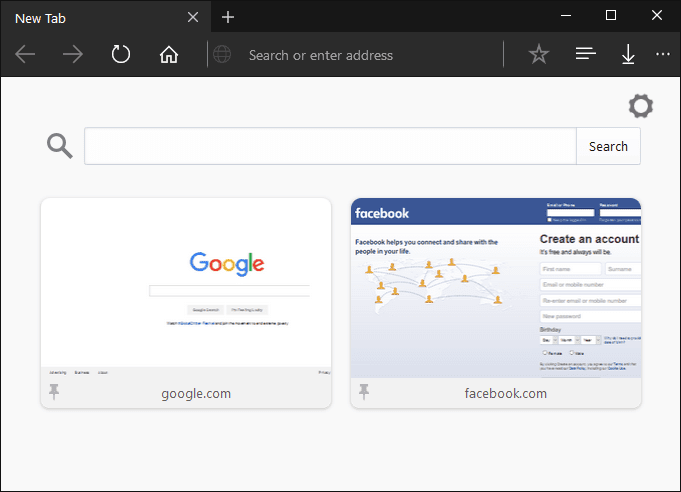
Note: This theme is currently in developmental stage and it may have some bugs. I have tested this theme and it works quite well. Take a look at the screenshot given below.


Make Firefox Look Like Microsoft Edge Browser

Liked the above screenshot? You can get that look with a simple CSS trick. Follow the following steps to apply this theme to your Mozilla Firefox.
  • Open Firefox and type "about:support" without quotes in the URL Bar. It'll open Troubleshooting Information page.
  • Click on "Show Folder" button given next to the "Profile Folder" label. It'll open Profile folder in Windows Explorer.
  • Now create a new folder there and name it Chrome.
  • Then download the CSS file from here and save it inside Chrome folder.
Note: I am providing the CSS file here to make your task easier. Thanks to Wellkins at Deviantart for designing this theme. Also, it is in developmental stage, therefore if you know how to create a CSS file then go to this link (Deviantart) and download the required files.
  • Relaunch the web browser after saving the CSS files in the specified folder. It'll now partially look like Microsoft Edge.
Following the above steps will turn your Firefox browser partially into Edge. Now we will combine the address bar and search bar.
  • Go to this link and download the Omnibar extension for Firefox.

Also Read:

Now you may want to bring the Home, Reload/stop button in the left hand side, just like Microsoft Edge. If yes, download and install the following extension.
  • Get the Buttons Back extension from here (Firefox Add-ons page).
That's all. Enjoy the new Microsoft Edge looks in your Mozilla Firefox web browser. Comment below if you like this theme.

There is a new feature in OneDrive which allows you to automatically save screenshots to your local OneDrive folder. This was discovered a few weeks ago, but it wasn't really working at that time. But now it appears that the service is up and working. Enabling this setting will allow the app to automatically save the screenshot to a special folder in the local drive. It's free service and you'll get couple of storage space for free, which you can extend with further subscription [according to your requirement].
Pressing the appropriate keyboard shortcuts for screen capture will trigger OneDrive to save the captured screen to your cloud storage. You can capture the screenshot of full screen by pressing Print Screen button, or press Alt + Print Screen button at the same time to take the screenshot of the current window only.

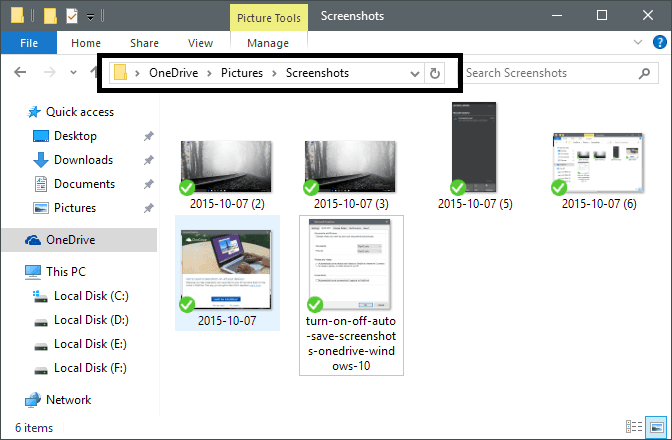
All the pictures will be saved in Users > OneDrive > Pictures > Screenshots folder. You can share these photos to anyone, right click on the image and select "share a OneDrive link". Please note that anyone with the link will be able to view and download the file.


How to Automatically Save Screenshot to OneDrive

Sign in to your OneDrive account now and follow the following steps to enable this option.
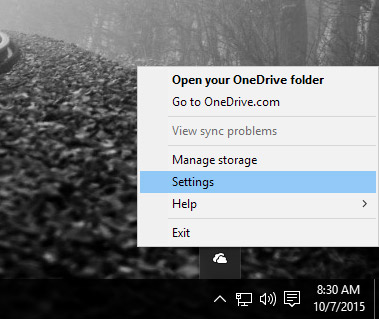
  • Navigate to OneDrive icon in the system tray, then right click on it and select Settings.
How to Automatically Save Screenshot to OneDrive
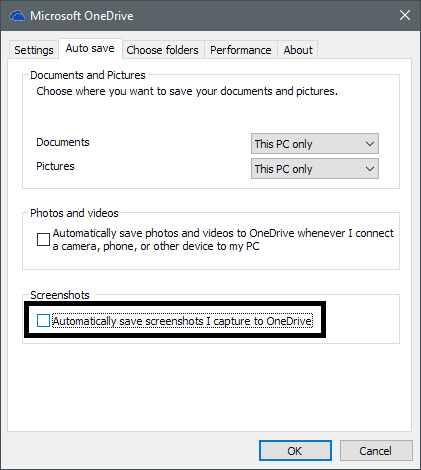
  • Click on the "Auto save" tab and check the "Automatically save screenshots I capture to OneDrive" option to enable it.
How to Automatically Save Screenshot to OneDrive
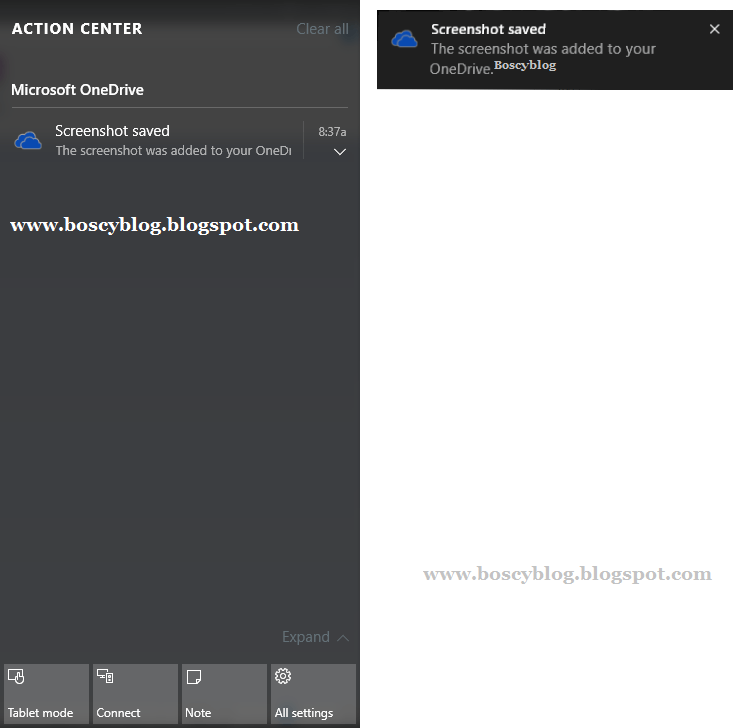
  • Now you'll receive a notification every time after you capture the screenshot.

  • That's it!
If you find this option annoying, then you can disable this option. It doesn't capture current window properly, so I have disabled it.


With the release of Windows 10, Microsoft has released a new default browser called Microsoft Edge. In the previous Operating Systems, Internet Explorer was the Internet browser from Microsoft. Internet Explorer has been replaced with Edge. The new Edge is more secure and faster than Internet Explorer.

This leads us to an irony that Internet Explorer is still available for Windows 10 while Edge is not available for older Operating Systems like Windows8/8.1 or Windows 7. It is specific to Windows 10. This situation is really frustrating especially for the developers.
But there is a way to overcome this situation and install Edge browser on Windows 8.1 or Windows 7 without upgrading to Windows 10. Microsoft has released Virtual Machine images for Hyper-V, VMWare and Virtualbox which come with pre-installed Windows 10.
You can run the virtual machine image for free which Windows 10 will come pre-configured for you. The VM has Windows 10 Enterprise edition with 90 days trial period. The period can be extended to 180 days which is about 6 months.
Please note that if you have data saved in the virtual machine, you will lose data after Windows expire. So you should always keep your data backed up from the Virtual Machine. You can keep an extra copy of the Virtual Machine image and run it when one trial has expired. This will give you another 90 days of free usage of Windows 10 and Microsoft Edge browser.
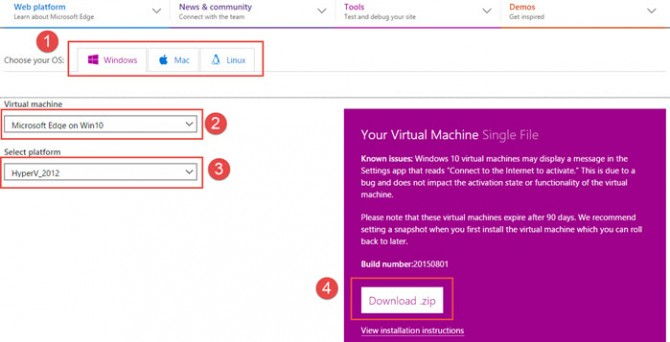
Downloading Microsoft Edge Windows 10 VM
According to Microsoft, the company is focusing Edge for Windows 10 and will only release a standalone version of the browser if everything goes smoothly. But this can be a long while or never. But interested users can always try and test Microsoft Edge without compromising on Windows upgrade.
You can download all the Microsoft Virtual Machines here. For downloading Microsoft Edge VM, you will need to select “Microsoft Edge on Win10” Virtual machine select box. Select the platform of your choice. The options include Hyper-V, Virtualbox and VMWare. You can run these virtual machines on Windows, Mac or Linux.
Summary

 
How To Replace KingRoot With SuperSU in Android
Whenever people knows about the truth of Kingroot that it’s trust less application and taking app the root access of their mobile, they suddenly wants to remove or replace it. Now they starts searching on Google like:
  • How To Remove Kingroot with SuperSU
  • How To Replace Kinguser with Superuser
Well, surely they finds best method to replace Kingroot with SuperSU on Google. Now they are satisfied with root access of their device. But I don’t think it’s a trust less app, even I used on several Android mobiles. Only reason for which people wants to get rid of the Kingroot (KingUser) app is, “It’s An Unknown Application”. Nothing else.
Are you also ever tried to replace Kinguser with SuperSU? If Yes then I hope you successfully found perfect solution for it. But if still you aren’t able then here is full step by step guide to replace Kingroot with SuperSU in any Android. There are three method which I am going to show to for replacing Kingroot with Superuser on Android device.

Requirements To Replace KingRoot With SuperSU

For removing or replacing Kingroot with Superuser on your device, you must need some basic requirements as followed below. Check them out and remove Kinguser with Superuser easily on any Android phone.
I am sharing 3 simple methods to replace Kinguser with SuperSU, In which first one is the easiest ever. If any method doesn’t works for you, try out another one. You can easily got succeed in second method.

Method 1: Replace Kingroot with SuperSu (Simplest Way)

It’s the easiest and simplest way to replace Kingroot with SuperSU on any rooted Android device. You just have to install SuperSU app from Play store and uninstall Kingroot from your device. That’s it. Let me explain step by step:
  • Open Play store.
  • Search for SuperSU & Install it.
  • Open it and give permission as a Superuser.
  • Now, uninstall Kingroot app.
  • Update SuperUser Binary and Reboot your phone.
  • Voila!! That’s it.
So guys, it’s the first and easiest trick to replace Kingroot with SuperSU. But if this one doesn’t works for you, you can try out second method followed below.

Method 2: Replace Kinguser With SuperSU using Terminal Emulator

This is second method which one works on almost every Android device. It’s tries by me on 10+different Android phones and works fine for me. That’s why I am sharing it here. You can also give a try to this method and I am sure it will works 100% without any issue. But you must have to follow this guide carefully else it can also break your device.
1) First of all you have to download all Files which I mentioned in Requirements.
2) After downloading all requirement file, first Unzip Replace_Kinguser_with_SuperSU file and Move the extracted folder “MRW” to any folder in Phone Storage.
3) Open Terminal Emulator app on your phone and type the command “SU” in the terminal. Now it asks to Grant the functions. Just allow them all.
4) After granting permission, you have to writer another code in Terminal, write “sh /sdcard/mrw/root.sh“. After typing this command, it will show you error on screen, but ignore it. 
5) Wait for sometime and it will automatically launch SuperSU, if it doesn’t then manually open SuperSU from apps.
6) It will ask you to update Superuser Binary, simply click on Continue and select Normal Mode.
6) At last just Restart your mobile.
Yo!! That’s it. Now SuperSU will work smoothly on your device. By this guide you have successfully replaced Kingroot’s KingUser with Chainfire’s SuperSU. This is was to best method to replace Kingroot with SuperSU on any Android.

Method 3: Replace KingRoot with SuperUser using Supersu Me Pro App

I already mentioned two methods to remove/replace Kingroot with SuperSU/Superuser. But if you doesn’t understood about Terminal and wants another simple way for it. Then this 3rd method is for you. You just need a simple app in this method and it can successfully replace Kinguser with Superuser.
1) First of all Download and Install Supersu Me Pro App on your device.
2) Open it, it will ask for Grant permissions, just click on Grant to  give SuperUser permissions to this app.
3) Now, this app will show you Big Green Android, just click on it.
4) It will start replacing Kingroot with SuperSU, it will takes maximum 2-3 minutes. So just wait for a while to complete its process.
5) After completing its process, it will automatically launch SuperSU app on your screen.
That’s it. It is another simplest way for replacing Kingroot with SuperSU. Now, You can Uninstall Supersu Me Pro app from your phone. Enjoy SuperUser instead KingUser on your phone.

Conclusion:

So guys, this is How to Replace Kingroot with SuperSU in any Android phone. There are the three best ways to remove/replace Kingroot (KingUser) with SuperSU/SuperUser on your rooted device. If you knows any other method to replace Kingroot with SuperSU easily, let me know in comment section. I hope it helped you alot. If you have any query or problem in this guide, feel free to comment below.

@boscy1

 boscy1
To get the full size profile photo of a Instagram profile,
  • Get your laptop out and navigate to Instagram.com.
  • Login to your Instagram account.
  • Go to the profile of your friend or follower.
  • Right click on the profile photo and copy link.
  • Paste the link in a new tab.
  • Remove this part from the URL: s150x150
  • Hit Enter to see the full size Instagram profile photo.
Hope you find this article easier.
Why is it possible to view full size Instagram photo just by modifying the URL?
Instagram uses a third-party CDN (Content Delivery Network) to host images. The CDN resizes the image you upload and stores it in different size. The URL contains the parameter for selecting the size that user requires.
This can be a biggest privacy issue as some people might upload sensitive photos as their profile photo. There will not be any issue when the image is resized to small but there comes a big privacy issue when the image is in full resolution.

Notice

Be careful on how you upload Instagram profile photo if you are going to upload a sensitive photo as your profile photo. Because u never may know who is going to enlarged your photos.

MARI themes

{instagram#Boscy1}
Boscyblog. Powered by Blogger.